Guide · OpenAI API key
How to get an OpenAI API key for Chaterimo
Create an OpenAI Platform account, add prepaid credits, create a secret API key and connect it to Chaterimo as your own key (BYOK).

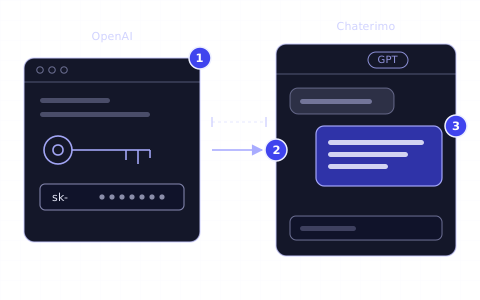
In short
- 01An OpenAI API key lets your Chaterimo chatbot answer with GPT models, and OpenAI bills you directly for what the chatbot uses (BYOK).
- 02You create the key on the OpenAI Platform (platform.openai.com), not in ChatGPT; a ChatGPT subscription does not include API usage.
- 03OpenAI bills the API with prepaid credits: when the balance reaches zero, the chatbot stops answering until you add credits.
- 04OpenAI shows a new secret key only once, so paste it into Chaterimo under Account Settings right away.
- 05Chaterimo checks which GPT models your key can use and marks the others as not available.
What you need
- A Chaterimo plan that uses your own API key (BYOK). The free trial and plans with Chaterimo API keys need no key.
- An e-mail address, or a Google, Microsoft or Apple account, to sign up at OpenAI.
- A payment card for prepaid OpenAI credits.
To get an OpenAI API key, sign up on the OpenAI Platform (platform.openai.com), add prepaid credits and create a secret key on the API keys page. Then paste the key into Chaterimo under Account Settings and choose a GPT model for your chatbot. This guide is for online stores whose Chaterimo plan uses their own API key (BYOK: you use your own key and pay OpenAI directly for what the chatbot uses).
Steps
1Create an OpenAI Platform account
Go to platform.openai.com and select Sign up, or Log in if you already have an OpenAI account. You can sign up with an e-mail address or with a Google, Microsoft or Apple account. Always log in with the same method you signed up with.
The OpenAI Platform is not ChatGPT. ChatGPT (chatgpt.com) is OpenAI's chat app; the Platform is where API keys and API billing live. A ChatGPT Plus subscription does not include API usage, and OpenAI bills the two separately.1
2Add prepaid credits
OpenAI bills API usage in advance. Open the Billing page of the OpenAI Platform, add a payment card and buy credits. When the balance reaches zero, OpenAI stops API requests and your chatbot cannot answer until you add credits. Automatic recharge tops the balance up when it falls below an amount you choose; keep it on so the chatbot does not stop at night or over a weekend.2
Tip
To cap the monthly spend, open the Limits page and select Edit spend limit under Spend. A spend alert only sends you an e-mail. A hard limit (Enforce a hard limit) stops API requests when it is reached, so your chatbot stops answering too.3
3Create the OpenAI API key
Open the API keys page and select Create new secret key. Fill in the dialog:
- Name
- A name you will recognise later, for example “Chaterimo”.
- Project
- The project the costs belong to. The default project works; a separate project shows the chatbot's costs on their own.
- Permissions
- Keep All, the default. A restricted key can block requests Chaterimo needs, for example the list of models it checks in step 5.4
Select Create secret key and copy the key. OpenAI shows the full key only once. If you lose it, create a new key.
Warning
Treat the key like a password. Never send it by e-mail or chat and never put it into the code of your store. Anyone who has the key can use the API at your expense. If a key leaks, create a new one, paste it into Chaterimo and then delete the old one on the API keys page.
4Paste the key into Chaterimo
In Chaterimo, open Account Settings in the menu. In the AI provider keys section, paste the key into OpenAI API key and select Save. The field then shows Key saved. Chaterimo stores the key encrypted and uses it only for requests to OpenAI. One key serves all chatbots of your organisation.
If you do not see the AI provider keys section, your plan does not need your own key: in the free trial and on plans with Chaterimo API keys, Chaterimo uses its own keys. The plans are on the pricing page.
5Choose a GPT model for your chatbot
Open Chat Settings & Embed. Under General chatbot settings, choose a GPT model in AI model type and select Save changes. Chaterimo asks OpenAI which models your key can use and marks the others “Not available for your API key”. Some models need a verified organisation at OpenAI first (see Troubleshooting).
Which model fits your store depends on your questions and your budget. Our AI benchmark compares models on real customer-support questions.
How to check it works
- Open Test Chatbot and ask a question your customers often ask. If the chatbot answers, the key and the model work.
- In Chat Settings & Embed, the note “Model availability checked against your OpenAI API key.” under the model list means Chaterimo could read the models of your key.
- The Usage page of the OpenAI Platform shows the requests of your chatbot.
Troubleshooting
- “You have not saved an API key for an AI provider yet”
- Your plan uses your own key, but Chaterimo has none. Paste the key in Account Settings (step 4).
- “Your API key for OpenAI is invalid or has been revoked”
- The key was deleted at OpenAI, copied incompletely or belongs to an organisation you no longer use. Create a new key (step 3) and paste it into Chaterimo. Chaterimo also sends this warning to the account owner by e-mail, at most once a day.
- “Your AI provider (OpenAI) reports that your account has run out of credits or reached a spend limit”
- The prepaid balance reached zero, or a hard spend limit was reached (Chaterimo shows the same warning for both). Add credits in Billing (step 2) and turn on automatic recharge, or raise the limit under Limits.
- A GPT model shows “Not available for your API key”
- OpenAI makes some models available only to verified organisations. Verify your organisation in the organisation settings of the OpenAI Platform. Chaterimo checks the models of a key at most once an hour, so the model may stay marked for up to an hour.
- You cannot find API keys or Billing
- You are probably in ChatGPT (chatgpt.com) instead of the OpenAI Platform, or in another organisation. Open platform.openai.com, log in with the method you signed up with and check that the right organisation is selected.
Next step
Compare the models your key can use in the AI benchmark and choose the one that fits your customers' questions. To try Claude or Gemini models as well, follow the guides to the Anthropic API key and the Gemini API key. Then test the chatbot on your own questions in Test Chatbot before you show it on your store.
-
OpenAI, “Managing billing for ChatGPT and the API platform”, accessed 19 October 2026, https://help.openai.com/en/articles/9039756-managing-billing-for-chatgpt-and-the-api-platform ↑
-
OpenAI, “Setting up and managing prepaid API billing”, accessed 19 October 2026, https://help.openai.com/en/articles/8264644-setting-up-and-managing-prepaid-api-billing ↑
-
OpenAI, “Spend limits”, accessed 19 October 2026, https://developers.openai.com/api/docs/guides/spend-limits ↑
-
OpenAI, “Assign API key permissions”, accessed 19 October 2026, https://help.openai.com/en/articles/8867743-assign-api-key-permissions ↑
Frequently asked questions
Is an OpenAI API key the same as ChatGPT Plus?
No. ChatGPT Plus is a subscription to OpenAI's chat app. The API key comes from the OpenAI Platform, and OpenAI bills API usage separately from prepaid credits.
Do I need to add credits to use the OpenAI API?
Yes. OpenAI bills the API in advance with prepaid credits. Without credits, requests fail and the chatbot cannot answer.
Can I use one OpenAI key for several chatbots in Chaterimo?
Yes. The key is saved in Account Settings and serves all chatbots of your organisation. Each chatbot can use a different GPT model.
What does the OpenAI API cost for a chatbot?
It depends on the model and the number of conversations. OpenAI lists its prices on the OpenAI API pricing page. The Chaterimo plan is billed separately; see the Chaterimo pricing page.
Guide · Anthropic API key
Anthropic Console: get a Claude API key for Chaterimo
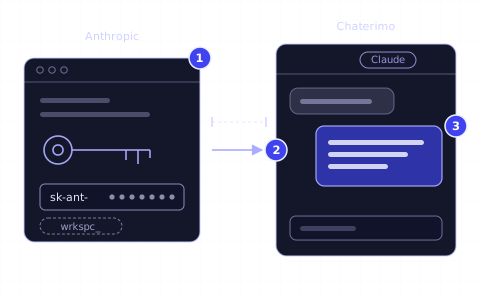
Sign up in the Anthropic Console (now Claude Console), buy credits, create a Claude API key and connect it to Chaterimo as your own key (BYOK).
Guide · Gemini API key
How to get a Gemini API key for Chaterimo
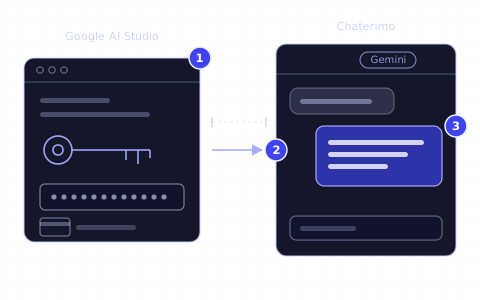
Sign in to Google AI Studio, create a Gemini API key, set up billing for its project and connect the key to Chaterimo as your own key (BYOK).
Article · LLM models
How to choose an LLM for customer support
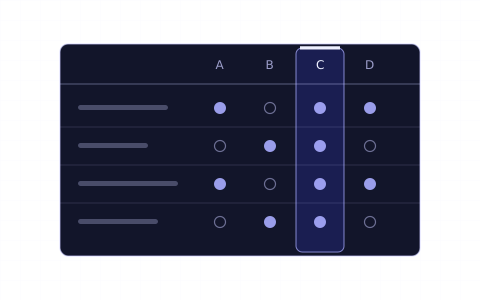
Accuracy on your data, speed, cost and tone. How to compare ChatGPT, Claude, Gemini and Grok for an online store and test them on your own questions.
Changelog
- Rewritten for the current OpenAI Platform and Chaterimo settings, with troubleshooting.
- Published.