Guide · Shopify
Shopify AI customer service: set up Chaterimo
Install the Chaterimo app, turn on its app embed and let an AI chatbot answer product and order questions on your Shopify store, step by step.

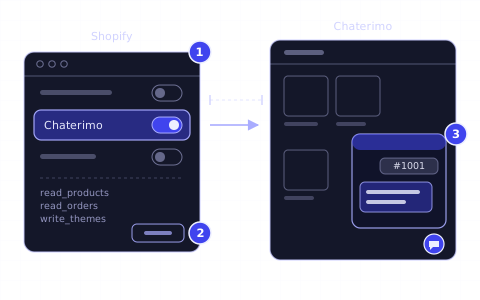
In short
- 01You install Chaterimo from the Shopify App Store, and the app creates a Chaterimo account for your store.
- 02The app imports your active products through the Shopify API and trains the chatbot on them by itself.
- 03The chat bubble appears on your store after you turn on the Chaterimo app embed in the theme editor and save; you paste no code into the theme.
- 04The chatbot tells a customer the status of an order when they give the order number and the e-mail or phone number on the order; without a matching contact it shows nothing about the order.
- 05A new store starts with a 7-day trial with all features; Shopify bills the plan you choose afterwards.
What you need
- A Shopify store and access to its Shopify admin with permission to install apps.
- No Chaterimo account: the app creates one for your store.
- For a plan with your own API key (BYOK): a key from OpenAI, Anthropic or Google. The trial needs no key.
To add AI customer service to a Shopify store, install the Chaterimo app from the Shopify App Store, accept the terms in the app and turn on the Chaterimo app embed in your theme. The app downloads your active products through the Shopify API and trains the chatbot on them by itself, so you paste no code. This guide is for Shopify store owners who want an AI chatbot for Shopify that answers product and order questions around the clock, in the customer's language.
Steps
1Install the Chaterimo app
Open the Chaterimo listing in the Shopify App Store and select Install. On the Install app screen, Shopify shows which store data the app can view and edit; review it and select Install again to authorise the app.1 Chaterimo asks to read your products and orders and to read and edit your themes: the products fill the knowledge base, the orders answer status questions and the theme access places the chat widget.
After the install, the app opens in your Shopify admin and creates a Chaterimo account for the store. You do not sign up on chaterimo.com first.
2Accept the terms
The app shows Set up your Chaterimo chatbot with the setup steps. Under Accept Terms & Privacy Policy, tick I agree to the Terms of Service and Privacy Policy and select Accept and Continue. The other steps unlock after that.
3Choose the AI model
Under Choose AI Model, the chatbot already has a default model. Change it only if you want another one, then select Save AI Model. During the trial, every model runs on Chaterimo's API keys, so you need no key of your own. Our blind test of AI models in customer support compares the models on real questions from online stores.
4Turn on the chat widget in your theme
Under Enable Chat Widget, select Enable Widget. The Shopify theme editor opens with the Chaterimo app embed selected. Turn the app embed on and select Save. Your store then shows a chat bubble in the corner of every page.
If the step shows “Preparing your widget... The activation button will appear here shortly.”, wait a moment: Chaterimo prepares the widget in the background and the button appears by itself.
Do not paste the Chaterimo code into the theme as well. The app embed loads it, and a second copy would show the chat twice.
5Wait for the product import and the first training
Products Import shows how many products Chaterimo has downloaded. Training AI starts when the import ends, and you can leave the page while it runs. Chaterimo imports products with the status Active; drafts and archived products stay out of the chatbot.
When the import finishes, Chaterimo also writes first instructions for the chatbot from your store name and products, and it takes the widget colours from your store's brand settings when Shopify provides them. During the trial and on paid plans, Chaterimo downloads your products again once a day and retrains the chatbot on the changes, so prices and stock stay current.
6Set up your Chaterimo login
The app covers the basic settings. Your policies, texts and conversations are in the full Chaterimo dashboard on chaterimo.com, which needs a login. If Overview shows Finish your Chaterimo account setup, select Open account setup and choose:
- Create new login
- A new e-mail and password for this store's Chaterimo account.
- Connect existing Chaterimo account
- You already use Chaterimo. Sign in, and Chaterimo moves the store into the organisation you choose.
7Add your policies and answers
Products alone do not tell the chatbot your delivery times or return rules. Select Open Full Dashboard in the app and add them in Chaterimo under Knowledge Base → Get Data:
- Text Input
- Paste your shipping, returns and payment rules or your FAQ.
- Website Scraping
- Import pages of your store, for example the policy pages, or load your sitemap. Shopify creates it at your domain, for example
example.com/sitemap.xml.2 - Order Details
- Explain what each order status means in your store and how long shipping takes. The chatbot uses this text only when a customer asks about an order.
Then open Knowledge Base and select Train chatbot.
8Choose a plan
While the trial runs, Subscription in the app shows “Your 7-day trial is active” and the plans. There are two kinds:
- Subscription plans with your own API keys
- You add an API key from OpenAI, Anthropic or Google and pay the provider directly for what the chatbot uses (BYOK). The OpenAI API key guide shows how to get one.
- Subscription plans with Chaterimo API keys
- Chaterimo provides the model keys, and the plan includes a monthly number of messages.
Shopify adds the plan to your regular Shopify bill.3 Without a plan, the store moves to the free plan when the trial ends, with fewer features and one AI model. If the knowledge base is larger than the free plan allows, Chaterimo deletes it 7 days after the trial ends. The plans and their limits are on the Chaterimo pricing page for Shopify.
How to check it works
- In the app, Chat Widget shows Theme widget live.
- Open your store in a private browser window. The chat bubble is in the corner of the page.
- Ask a question about a product. The answer should name products from your catalogue.
- Ask about a real order: give the order number and the e-mail address used on the order. The chatbot answers with the order status and, when Shopify has it, the tracking number.
- Open View Conversations in the app, or Chat History in Chaterimo. Your test conversation is there.
Test Chatbot in the app menu opens a test chat in Chaterimo, so you can try answers before the widget is live.
Troubleshooting
- “Theme activation needed”
- The app embed is off in your current theme. In Chat Widget, select Enable Widget, turn the Chaterimo app embed on and select Save.
- The chat bubble disappeared after you changed the theme
- Shopify does not turn app embeds on in a newly published theme.4 In your Shopify admin, open Online Store, select Edit theme for the new theme, open App embeds, turn Chaterimo on and select Save.
- Visitors see “This chat isn't available on this website.”
- The domain of the page is not in the chatbot's allowed domains. Chaterimo adds your store's primary domain at install; a domain you connect later must be added. In Chat Widget, add it to Allowed domains and select Save Basic Settings.
- “Chatbot action required”
- Your plan uses your own API key, and the chosen model has no matching key, or the provider rejected the key or reports no credit. Paste a valid key in the same card, or choose a model of a provider whose key you saved. The OpenAI API key guide covers credits and invalid keys.
- A product is missing from the answers
- Chaterimo imports only products with the status Active. A new product appears after the next daily update. To download the products right away, open Integrations in Chaterimo and select Fetch Products in the Shopify card, then train the chatbot under Knowledge Base.
- The chatbot does not answer about orders
- Order lookups need Fetch Orders turned on in the Shopify card under Integrations in Chaterimo. It is on after install. Also check that the customer gives the order number as Shopify shows it, for example
#1001.
Next step
Read how to choose an LLM for customer support and test two or three models on questions your customers really ask. Then add the texts behind your most frequent questions and retrain the chatbot.
-
Shopify Help Center, “Installing and setting up apps”, accessed 20 October 2026, https://help.shopify.com/en/manual/apps/installing-apps ↑
-
Shopify Help Center, “Finding and submitting your sitemap”, accessed 19 October 2026, https://help.shopify.com/en/manual/promoting-marketing/seo/find-site-map ↑
-
Shopify Help Center, “App charges on your Shopify bills”, accessed 19 October 2026, https://help.shopify.com/en/manual/your-account/manage-billing/your-invoice/apps ↑
-
Shopify Help Center, “Extend your theme with apps”, accessed 19 October 2026, https://help.shopify.com/en/manual/online-store/themes/theme-structure/extend/apps ↑
Frequently asked questions
Do I need to paste code into my Shopify theme?
No. The Chaterimo app embed loads the chat widget. Turn it on once in the theme editor and save; do not add the Chaterimo script to the theme as well.
Which customer questions should the chatbot handle first?
The ones that repeat every day. Where is my order, returns and exchanges, shipping and payment, and product questions such as size or compatibility. Order status comes from Shopify; returns, shipping and payment need your texts in the knowledge base.
Can customers check their order status in the chat?
Yes. The customer gives the order number and the e-mail or phone number used on the order. When the contact matches, the chatbot gives the payment and fulfilment status, the ordered items and, when Shopify has it, the tracking number. Without a matching contact it shows nothing about the order.
How long is the free trial?
7 days, with all features and AI models. After that, the store moves to the free plan unless you choose a plan in Subscription. The plans are on the Chaterimo pricing page for Shopify.
How do I change my plan?
In Subscription, cancel the current plan first, then subscribe to the new one. Shopify bills the plan with your Shopify subscription.
Which AI models can the chatbot use?
Models from OpenAI (GPT), Anthropic (Claude) and Google (Gemini) are available, and plans with your own API key use your key with that provider. Our AI benchmark compares them on customer-support questions.
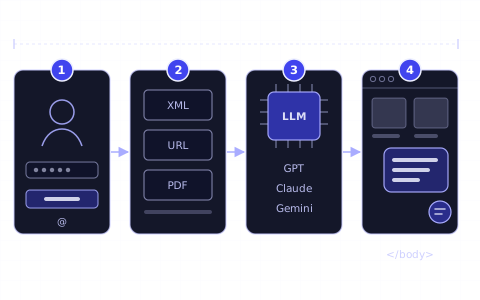
Guide · First AI chatbot
Getting started: your first AI chatbot in 4 steps
Sign up, connect your store or add your content, choose the AI model and put the chat window on your website. The getting-started guide for online stores.
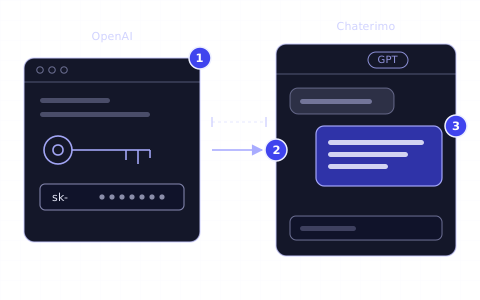
Guide · OpenAI API key
How to get an OpenAI API key for Chaterimo
Create an OpenAI Platform account, add prepaid credits, create a secret API key and connect it to Chaterimo as your own key (BYOK).
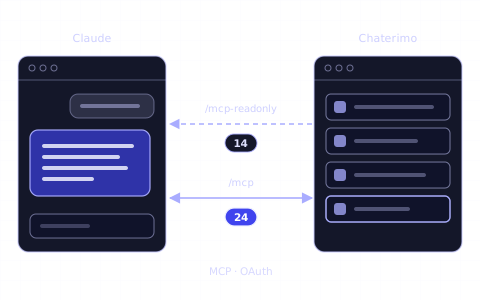
Guide · MCP server for Claude
Chaterimo MCP server: connect Claude to your AI chatbot
Add Chaterimo to Claude as a custom connector to read conversations, tickets and analytics or change chatbot settings. One URL and an OAuth sign-in.
Changelog
- Rewritten for the current Chaterimo Shopify app: setup steps, app embed, order lookups and troubleshooting.
- Published.