Guide · First AI chatbot
Getting started: your first AI chatbot in 4 steps
Sign up, connect your store or add your content, choose the AI model and put the chat window on your website. The getting-started guide for online stores.
In short
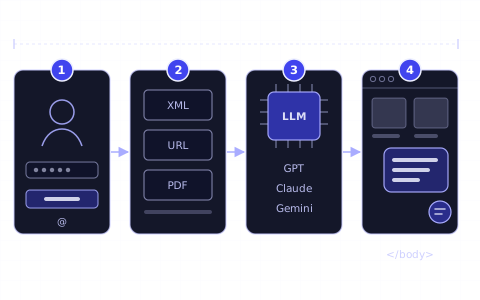
- 01Your first AI chatbot on Chaterimo takes 4 steps: sign up, connect your store or add your content, choose the AI model and settings, and put the chat window on your website.
- 02A new account starts with a 7-day free trial. Chaterimo uses its own API keys during the trial, so you need no API key and no payment card.
- 03Shopify, Shoptet, Upgates and Eshop-rychle stores connect in Integrations; any other website adds its product feed, pages, files or texts in Knowledge Base → Get Data.
- 04The chatbot answers from your data only after training, so select Train chatbot and check the answers in Test Chatbot before customers see them.
- 05The chat window needs one snippet in the site-wide layout of your website; the Shopify, Shoptet, Upgates and Eshop-rychle integrations install it for you.
What you need
- An online store or a website, and access to its administration or its HTML layout.
- An e-mail address for your Chaterimo account.
- Nothing else for the 7-day free trial: no payment card and no API key.
To put your first AI chatbot on your online store with Chaterimo, you go through 4 steps: sign up, connect your store or add your content, choose the AI model and settings, and put the chat window on your website. A new account starts with a 7-day free trial, during which Chaterimo uses its own API keys, so you need no API key to begin. This guide is for owners and managers of online stores who set up Chaterimo for the first time.
Steps
1Sign up and activate your account
Open the sign-up page and fill in Email, Password, Confirm Password, Name of organisation and Website domain. The domain is the address of your store, for example yourstore.com; Chaterimo allows the chat window to run on it. Accept the terms and select Sign up.
Chaterimo then sends a token to your e-mail and opens the Account Activation page. Paste the token into Token and select Submit. You land on the Dashboard of your new organisation (organisation: your company account in Chaterimo; one login can own several).
The account starts with a 7-day free trial. During the trial Chaterimo uses its own API keys, so you can try every AI model without your own key. The plans that follow the trial are on the pricing page.
2Connect your store or add your content
The chatbot answers from your knowledge base (the products, pages and texts it searches before it answers). You fill it in one of two ways, or both.
Your store runs on Shopify, Shoptet, Upgates or Eshop-rychle. Open Integrations in the menu and use the card of your platform in E-commerce Platforms. The card links to the Chaterimo app or add-on of your platform and lists what the connection does: depending on the platform, it downloads your products and keeps them up to date, looks up the status of an order and uploads the chat widget to your store. When the catalogue import runs, the Dashboard shows “Downloading your catalog. Training starts automatically after import.” A PrestaShop store connects in the same place for order lookup.
Any other store or website. Open Knowledge Base → Get Data in the menu and choose a data source:
- XML Product Feed
- Paste the URL of your product feed (Google Shopping format) into Feed URL and select Import feed. Turn on Download this feed again every day and retrain so new products and prices reach the chatbot. One feed can hold at most 100,000 products.
- Website Scraping
- Import your pages: Scrape your sitemap (up to 2,500 URLs per import, you choose the sections), Scrape website with all internal links (start with one category) or Scrape a single link. Use it for shipping, returns, contacts and other information pages.
- File Upload
- Upload PDF, Word, PowerPoint, Excel, CSV, text files or images, up to 10 MB each. Each file becomes a separate entry.
- Text Input
- Paste FAQs, policies or any other text, give it a Name and select Save.
Then open Knowledge Base → Knowledge Base and select Train chatbot. Training turns your data into a form the chatbot can search; the button changes to Retrain when everything is trained. Data you add later is trained automatically every night during the trial and on paid plans; select Train chatbot to train it right away.
3Choose the AI model and settings
Open Chatbot → Chat Settings & Embed. Under General chatbot settings, set:
- AI model type
- The language model (LLM) that writes the answers: GPT (OpenAI), Claude (Anthropic), Gemini (Google) or Grok (xAI). During the trial you can choose any model on the list.
- Chatbot language
- Automatic answers each customer in the language they write in. Choose a fixed language if your store serves one market only.
- Chatbot role
- The instructions for the chatbot: who it is, how it talks and when it offers to pass the customer to a person. The default text works for a start; Reset to Default restores it.
Select Save changes. Then open Chatbot → Test Chatbot and ask the questions your customers ask most often: a product recommendation, delivery times, returns. On the Compare Models tab, the same question goes to several models at once, so you can compare their answers on your own data. Our guide to choosing an LLM for customer support explains what to compare.
After the trial, the model list depends on your plan. Plans with Chaterimo API keys offer a shorter list of models. Plans with your own API key (BYOK: you use your own key and pay the model provider directly) offer every model and need your key in Account Settings; see how to get an OpenAI API key.
4Put the chat window on your website
If you connected Shopify, Shoptet, Upgates or Eshop-rychle in step 2, the integration installs the chat window on your store. Do not paste the snippet there a second time.
On any other website, open Chat Settings & Embed and expand Website installation above the chatbot settings. Copy the snippet under Recommended: organisation language loader and paste it once into the site-wide layout of your website, ideally right before the closing </body> tag, so it loads on every page. The snippet appears only after the first training.
Check that Allowed domains in the chatbot settings lists every domain where the chat window runs, for example both yourstore.com and yourstore.de. The chat window works only on these domains.
How to check it works
- Open your store in a private browser window. The chat bubble appears on the page.
- Ask a question your knowledge base covers, for example about delivery, and then a product question. The answers use your data, and product answers show products from your catalogue.
- Open Chat History in Chaterimo. Your conversation is there. Questions asked in Test Chatbot run in testing mode, which creates no tickets and sends no ticket e-mails.
Troubleshooting
- The activation e-mail with the token does not arrive
- Check the spam folder, then select Resend token on the Account Activation page. Wait a few minutes before you ask again. If nothing arrives, write to info@chaterimo.com.
- “Invalid token. Please check your email and try again.”
- The token was copied incompletely or comes from an older e-mail. Use the token from the latest e-mail.
- “To unlock chatbot snippet, first import data and train the chatbot.”
- Chat Settings & Embed shows the snippet only after the first training. Add data (step 2) and select Train chatbot.
- “Your chatbot is still being trained. Responses may be incomplete or inaccurate.”
- Training is still running. Wait until the Dashboard shows “All available data trained and ready.” and test again.
- The chat bubble does not appear on the store
- Check that the snippet is in the site-wide layout, not on one page only, and that the domain of the store is in Allowed domains. If the bubble is missing on phones only, turn on Show widget on mobile in Chat Settings & Embed.
- An answer is wrong or incomplete
- In Test Chatbot, select Analyze why AI answered like this under the answer. The analysis shows the likely cause, for example missing data in the knowledge base or instructions in the chatbot role that need a change.
Next step
Choose the model that fits your questions and budget: the AI benchmark and our blind rating of AI models for customer support compare them on real e-commerce questions. If your plan uses your own API key, set it up with the guide for OpenAI, Anthropic or Gemini. Store-specific steps are in the guides for Shopify, WordPress and Squarespace.
Frequently asked questions
Do I need programming skills to set up an AI chatbot?
No. Store integrations install the chat window for you, and on any other website you paste one snippet into the site-wide layout once. Everything else happens in the Chaterimo app.
Do I need my own API key to start?
No. During the 7-day free trial Chaterimo uses its own API keys. After the trial, plans with Chaterimo API keys need no key either; plans with your own API key (BYOK) need one in Account Settings.
How does the chatbot stay up to date?
Store integrations keep your products up to date; the card of your platform in Integrations lists how. For feeds and web pages, turn on the daily download (Download this feed again every day and retrain, Scrape this page again every day and retrain). After other changes, select Retrain on the Knowledge Base page.
Can the chatbot answer in several languages?
Yes. With Chatbot language set to Automatic, it answers in the customer's language. A store with separate language versions can also run one chatbot per language and route them by the language code in the URL under Website installation.
What happens when the free trial ends?
Choose a plan on the pricing page before the trial ends. Without a plan the account continues with limited features, and a knowledge base of 50,000 characters or more is deleted 7 days after the trial ends.
Guide · Shopify
Shopify AI customer service: set up Chaterimo
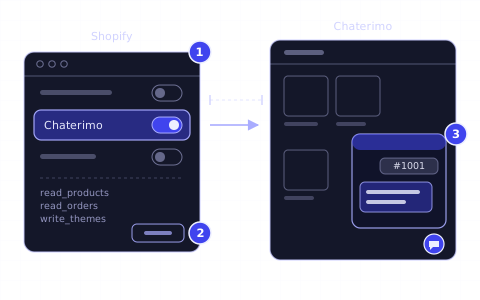
Install the Chaterimo app, turn on its app embed and let an AI chatbot answer product and order questions on your Shopify store, step by step.
Guide · WordPress
How to add AI customer service to WordPress
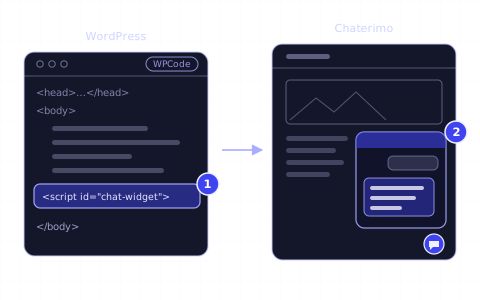
Train a Chaterimo AI chatbot on your WordPress site, then add its chat widget with one line of code in the footer, for example with the WPCode plugin.
Article · LLM models
How to choose an LLM for customer support
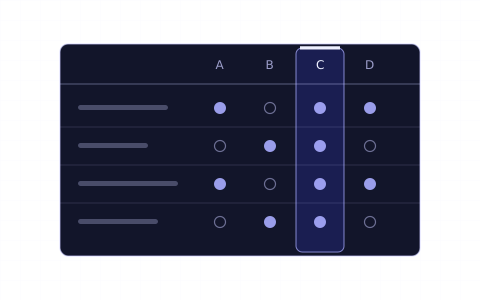
Accuracy on your data, speed, cost and tone. How to compare ChatGPT, Claude, Gemini and Grok for an online store and test them on your own questions.
Changelog
- Rewritten as the getting-started guide for the current app and moved to the new blog.
- Published.