Guide · WordPress
How to add AI customer service to WordPress
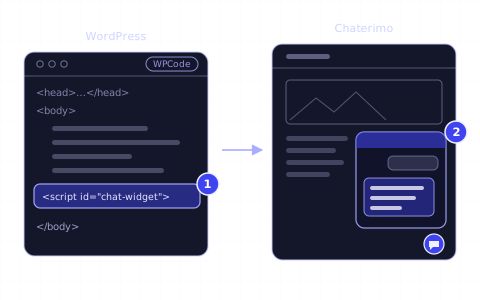
Train a Chaterimo AI chatbot on your WordPress site, then add its chat widget with one line of code in the footer, for example with the WPCode plugin.
In short
- 01Chaterimo adds an AI chatbot to a WordPress site with one line of code that loads the chat widget; Chaterimo has no WordPress plugin of its own.
- 02The chatbot answers from its knowledge base: pages imported from your sitemap, your texts and files and, for WooCommerce, a product feed in Google Shopping format.
- 03You paste the line once, in the footer of every page, for example with the free WPCode plugin under Code Snippets → Header & Footer.
- 04The chat widget runs only on the domains listed under Allowed domains in Chaterimo, so list every domain where the site runs.
What you need
- A WordPress site where you can install plugins: self-hosted WordPress, or a paid WordPress.com plan.
- A Chaterimo account. Signing up starts a 7-day trial with all features.
- The content the chatbot should answer from: your pages, documents or, for WooCommerce, a product feed.
To add AI customer service to a WordPress site, train a Chaterimo chatbot on your content and paste one line of code from Chaterimo into the footer of your site. The line loads the chat widget on every page; the free WPCode plugin is the simplest way to add it without editing the theme. This guide is for owners of WordPress sites and WooCommerce stores who want an AI chatbot that answers customers from their own pages and products.
Steps
1Create a Chaterimo account
Sign up for Chaterimo and fill in Email, Password, Confirm Password, Name of organisation and Website domain. In Website domain, enter the domain of your WordPress site, for example example.com: the chat widget will run on that domain. Chaterimo sends a token to your e-mail address. Enter it on the Account Activation page and select Submit.
The new account starts with a 7-day trial with all features. The plans after the trial are on the pricing page.
2Add your content to the knowledge base
The chatbot answers only from what you give it. In Chaterimo, open Knowledge Base → Get Data and choose the sources:
- Website Scraping
- Under Scrape your sitemap, enter the address of your sitemap and select Load sitemap. WordPress publishes one at
/wp-sitemap.xml; an SEO plugin may replace it with its own sitemap.1 Choose the sections to import, for example pages and posts, and select Import selected pages. One import takes at most 2,500 URLs. Turn on Scrape this sitemap daily (automatically includes new URLs) to keep the chatbot current. - Text Input
- Paste your shipping, returns, payment and contact rules or your FAQ.
- File Upload
- Upload price lists, manuals or terms: PDF, Word, PowerPoint, Excel, CSV, TXT or images, up to 10 MB each.
- XML Product Feed
- For a WooCommerce store, import the products from a product feed in Google Shopping format. WooCommerce does not publish such a feed by itself; a product feed plugin does. Turn on Download this feed again every day and retrain so prices and stock stay current.
Then open Knowledge Base and select Train chatbot.
3Test the chatbot
Open Test Chatbot and ask the questions your customers ask most often. If an answer is wrong or missing, add the information in step 2 and train again. To choose a different AI model, see AI model type in Chat Settings & Embed; our blind test of AI models in customer support compares them.
4Check the allowed domains and copy the code
Open Chat Settings & Embed. Under Appearance chatbot settings, Allowed domains already holds the domain you entered at sign-up. Add every other domain where the site runs, for example a staging copy, and select Save changes. Subdomains of a listed domain are allowed too, and www. makes no difference.
Then expand Website installation and copy the line under Recommended: organisation language loader with the copy button next to it. The line looks like this:
```html
```
The line stays the same when you later change the chatbot or its languages, so you paste it only once.
5Install the WPCode plugin
In the WordPress admin, open Plugins → Add Plugin (Add New Plugin or Add New in WordPress versions before 6.8), search for “WPCode”, select Install Now and then Activate. The plugin is called “WPCode – Insert Headers and Footers + Custom Code Snippets”.2
On WordPress.com, installing plugins needs a paid plan.3
6Paste the code into the footer
Open Code Snippets → Header & Footer, paste the line from step 4 into Footer and select Save Changes. WPCode puts footer code just before the closing </body> tag of every page, which is where Chaterimo recommends it.4
Paste the line only once. If you do not want a plugin, a developer can add the same line to the site-wide layout of your theme, just before </body>.
How to check it works
- Open your site in a private browser window. The chat bubble is in the corner of the page.
- Ask a question about your products or services. The answer should come from the content you imported.
- Open Chat History in Chaterimo. Your test conversation is there.
- Open the page source and search for
chat-widget. The line should be there exactly once.
Troubleshooting
- The chat bubble does not appear
- Check that WPCode is active and the line is saved in Footer. If you use a caching plugin, clear its cache. Plugins that delay or combine JavaScript can hold the line back; exclude it from that optimisation.
- Visitors see “This chat isn't available on this website.”
- The domain of the page is not in Allowed domains. Add it in Chat Settings & Embed and select Save changes.
- “The organisation loader is not ready yet. Import and train data, then refresh the loader.”
- Chaterimo prepares the line once the knowledge base has data. Import your content (step 2), select Train chatbot under Knowledge Base, then open Chat Settings & Embed again.
- “The sitemap could not be loaded. Check the address and try again.”
- Open the sitemap address in your browser. If it does not load there, check which sitemap your SEO plugin publishes, or import the pages one by one under Scrape a single link.
- The line is on the page twice
- It was added in two places, for example in WPCode and in the theme. Keep one copy, as Chaterimo asks in Website installation.
Next step
Read how to choose an LLM for customer support and test two or three models on your customers' questions. If you are setting up Chaterimo for the first time, start with your first chatbot in 4 steps. If your plan uses your own API key, the OpenAI API key guide shows how to get one.
-
WordPress, “New XML Sitemaps Functionality in WordPress 5.5”, accessed 19 October 2026, https://make.wordpress.org/core/2020/07/22/new-xml-sitemaps-functionality-in-wordpress-5-5/ ↑
-
WordPress.org, “WPCode – Insert Headers and Footers + Custom Code Snippets – WordPress Code Manager”, accessed 19 October 2026, https://wordpress.org/plugins/insert-headers-and-footers/ ↑
-
WordPress.com Support, “Plugins”, accessed 19 October 2026, https://wordpress.com/support/plugins/ ↑
-
WPCode, “Using the Global Header & Footer settings”, accessed 19 October 2026, https://wpcode.com/docs/using-the-global-header-footer-settings/ ↑
Frequently asked questions
Is there a Chaterimo plugin for WordPress?
No. Chaterimo works on WordPress through one line of code that loads the chat widget. A general plugin such as WPCode puts it into the footer of every page.
Does Chaterimo work with WooCommerce?
Yes. Import your products from a product feed in Google Shopping format under XML Product Feed, and your pages and policies from your sitemap. The chatbot then recommends products from the feed.
Where should the code go, in the header or the footer?
In the footer, once, so it loads on every page. Chaterimo recommends placing it just before the closing </body> tag.
Do I need to change the code when I change the chatbot?
No. The line stays the same when you change the chatbot's settings, the primary chatbot or the language routing, so you paste it only once.
Guide · First AI chatbot
Getting started: your first AI chatbot in 4 steps
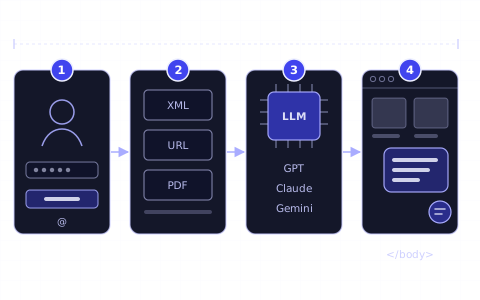
Sign up, connect your store or add your content, choose the AI model and put the chat window on your website. The getting-started guide for online stores.
Guide · Squarespace
How to add AI customer service to Squarespace
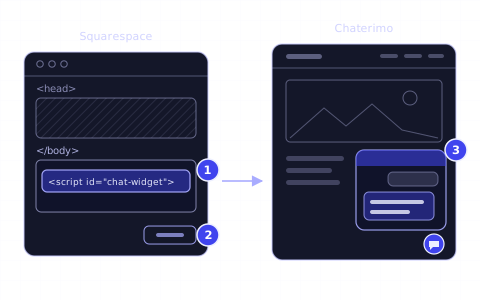
Train a Chaterimo AI chatbot on your Squarespace site, then add its chat widget with one line of code in Code Injection, step by step.
Article · LLM models
How to choose an LLM for customer support
Accuracy on your data, speed, cost and tone. How to compare ChatGPT, Claude, Gemini and Grok for an online store and test them on your own questions.
Changelog
- Rewritten for the current Chaterimo app: organisation language loader, allowed domains, WPCode and troubleshooting.
- Published.